How to report a bug with an annotated screenshot: the complete guide
"The site doesn't work." For whoever has to fix it, that message is the start of an investigation. A good report, with an annotated screenshot, saves time on both sides.
"The site doesn't work." For the person who has to fix it, that message is the start of an investigation: which page, which button, on which device, since when? Often the fix takes five minutes, and understanding the problem takes an hour. A good report flips that ratio.
This guide works for a developer, an agency, a client giving feedback on a website, or a team testing its own tool.
Why "it doesn't work" is not enough
A vague report almost always triggers a back-and-forth: "Can you send me a screenshot?", "Which page was it on?", "Were you on your phone?". Each question adds a day. And when the problem does not happen for the person fixing it, it gets filed as "cannot reproduce" even though it is very real.
The six things a good report includes
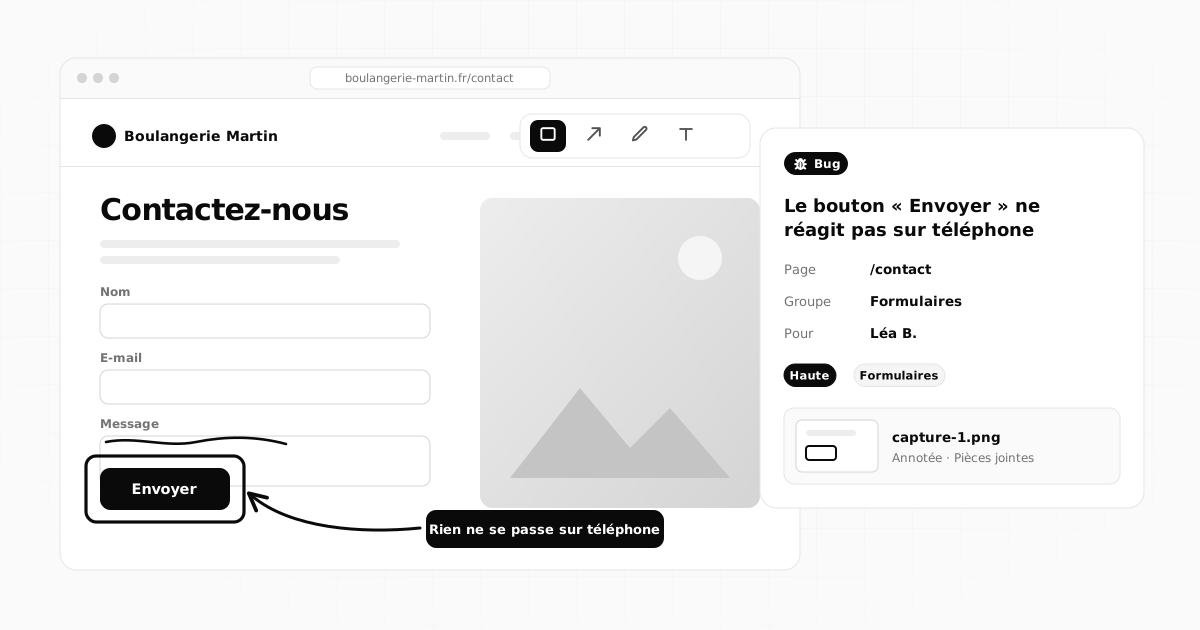
- A precise title: "The Send button on the contact form does nothing on mobile" rather than "Form bug".
- The page concerned: the exact address, copied from the address bar.
- What you did: the steps, in order.
- What happened: the error message, or the lack of any response.
- What should have happened: the expected result.
- The device and browser: computer or phone, and which one.
And, almost always, a screenshot. It shows in one image what three paragraphs struggle to describe.
Taking a screenshot
- On Windows: Windows + Shift + S, then select the area. The screenshot is copied, ready to paste.
- On Mac: Cmd + Shift + 4 to capture an area (the file lands on the desktop). Add Ctrl (Cmd + Ctrl + Shift + 4) to copy it straight to the clipboard, ready to paste.
- On a phone: usually, press the power button and a volume button at the same time. The exact combination depends on the model.
Capture only the useful area, with a little context around it: a button on its own does not say where it sits on the page.
Annotating: one annotation, one piece of information
A raw screenshot makes the reader hunt for what is wrong. An annotated one shows them. Four tools are enough:
- the box to frame the area concerned;
- the arrow to point at a specific detail;
- the text to write what is wrong, right on the image ("too small", "should be aligned");
- the pen to underline, cross out or draw freehand.
The rule: few annotations, two or three at most, and one screenshot per problem. If a screenshot shows four problems, file four reports: they will not be fixed by the same person, or at the same time. And avoid capturing personal information: crop to the useful area.
In Flopilot: "Report / suggest"
Flopilot has a button made for this in every project, Report / suggest:
- you choose the type: bug, change or idea;
- you add a title, the address of the page concerned, what is wrong and what should happen;
- you paste your screenshot with Ctrl+V (several if needed) and annotate it with the box, arrow, pen and text;
- you choose the group ("Responsive", "Buttons", "Forms"), the priority and the person who will handle the fix.
The report becomes a project task, with its type, its page and its annotated screenshots, filed automatically in the "Attachments" folder (Pièces jointes).
Triaging reports
When feedback pours in (during a website's acceptance testing, for example), triage is essential:
- Urgent: it blocks something (payment, the contact form, login).
- High: it visibly bothers visitors.
- Medium: it deserves fixing, but can wait a few days.
- Low: a cosmetic detail.
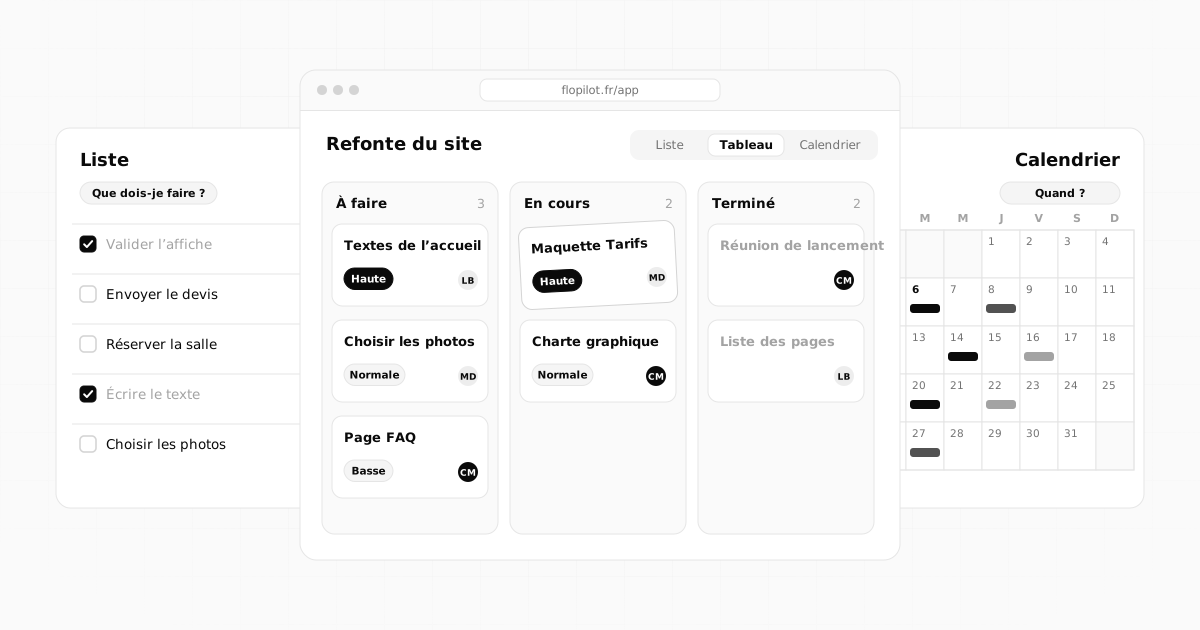
Then sort by group (an area of the site, a type of problem), and track fixes on a kanban board with columns "To fix", "In progress", "To check" and "Fixed". The list view can also be filtered by type: all bugs, all ideas.
On the side of whoever fixes it
- Reproduce the problem first, using the steps provided.
- Ask your questions as comments on the task, not by email: the history stays in one place.
- Explain in one line what was done once it is fixed, then move the task to "To check": the person who reported it checks and closes it.
- Merge duplicates: two reports of the same problem means one fix.
Mistakes to avoid
- One message for everything: "Here is my feedback" followed by twenty points in an email.
- No page address: on a thirty-page website, it becomes a treasure hunt.
- Screenshots with no annotations: nobody knows what to look at.
- Everything marked high priority: if everything is urgent, nothing is.
Frequently asked questions
What should a good bug report include?
A precise title, the address of the page concerned, the steps followed, what happened, what should have happened, the device and browser used, and an annotated screenshot.
How do I make an annotated screenshot quickly?
Take the screenshot (Windows + Shift + S on Windows, Cmd + Ctrl + Shift + 4 on Mac), paste it into your tool, then add a box, an arrow or some text. In Flopilot, you paste the screenshot with Ctrl+V into "Report / suggest" and annotate it right there.
Can I paste several screenshots into one report?
Yes. In Flopilot, you can paste several screenshots into a report and annotate each one with the box, arrow, pen and text. They are stored with the task.
All of this, in a single tool
Flopilot brings together tasks, list, kanban and calendar views, documents you can read right in the app, and a dashboard for every project.
BugsScreenshotsClient feedback