How to create a task list with AI, then import it into your project
Breaking a project down into tasks is a thankless job. An AI gives you a complete first draft in seconds; it's up to you to correct it, then import it without copying anything out.
Breaking a project down into tasks is a thankless exercise: you have to think of everything, in the right order, without forgetting anything. That's exactly where AI assistants like Claude come in handy: in a few seconds they suggest a complete first version, and all you have to do is correct it. The whole trick is to ask for the right format, then import the result without copying it all out by hand.
What AI does well, and less well
An AI is very good at:
- suggesting a clear structure, step by step;
- thinking of the tasks people often forget (legal notices, testing on a phone, backups);
- breaking a big, vague task down into small, concrete ones;
- rewording vague task names.
It's less good at everything it can't know: who does what in your team, your client's real constraints, what's already done, how long each task really takes. So the list it gives you is a draft, not a plan. It saves you from the blank page, not from thinking.
Writing a good request
A good request has four parts: the context, the goal, the constraints and the expected format. For example:
I'm preparing the launch of an online shop for handmade ceramics. The website already exists: we need to add the shop, write the product pages and prepare the announcement on social media. There are two of us: Léa handles the content, I handle the technical side. Go-live is planned for 16 November. Give me the list of tasks, sorted into main stages, in the Markdown format described below.
The more precise your context, the more useful the list will be. A one-line request gives you a generic list that works for everyone, and therefore for no one.
The format to ask for
To be able to import the list directly, ask the AI to use this simple Markdown format:
- a "##" heading for each group of tasks (a stage, a topic);
- a "- [ ]" line for each task;
- an indented line under a task for a subtask;
- a line starting with ">" for the description of the task above it;
- quick-entry keywords on each line. Flopilot's app is in French, so these keywords are French: a date ("le 12/10" for 12 October, day first, or "vendredi" for Friday), a priority ("!haute" for high), a tag ("#textes"), a person ("@lea").
Here's what the result looks like (the task names are in English, the keywords stay in French):
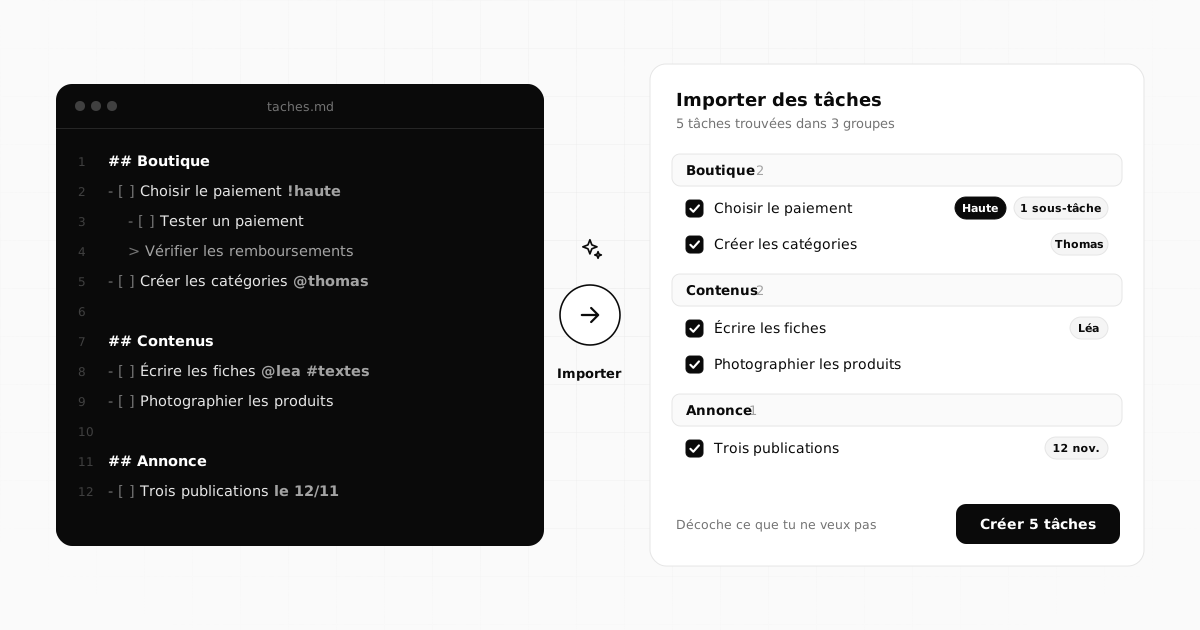
## Shop
- [ ] Choose the payment method !haute @thomas le 20/10
  - [ ] Compare the options
  - [ ] Test a payment from start to finish
  > Also check refunds
- [ ] Create the product categories @thomas
## Content
- [ ] Write the twelve product pages @lea #textes
- [ ] Photograph the products @lea
## Announcement
- [ ] Prepare three social media posts #com
Here, "!haute @thomas le 20/10" means high priority, assigned to Thomas, due 20 October.
If you'd rather use a spreadsheet, the import also accepts a CSV file. The column headers must be the French ones the import recognises: titre (title), groupe (group), priorite (priority), echeance (due date), assigne (assignee), etiquettes (tags), description and fait (done). Only the titre column is required.
Review before importing
Before importing, take five minutes to read through the list with a critical eye:
- Cut what's unnecessary: AI tends to plan for everything, including things you don't need.
- Check the dates: are they realistic, given your other projects?
- Check who's responsible: does each task have the right person?
- Break down anything too big: a task that takes more than a day often deserves subtasks.
- Add what it couldn't know: the follow-up with the client, the task that depends on a supplier.
Importing the list into Flopilot
In a Flopilot project, the Importer (Import) button opens a window where you paste the text, or drop a .md, .txt or .csv file. A preview shows the tasks sorted by group, with their priorities, dates and the people it recognised. You untick anything you don't want to keep, then click Créer (Create): the tasks, their subtasks and their descriptions arrive in the project, sorted into their groups.
The other way round: export for review
Export works too: a project can be exported as Markdown (which the import can read back) or as CSV (which opens in Excel). It's handy for asking an AI "what's missing from this plan?", for archiving the state of a project, or for sharing the list with someone who doesn't use Flopilot.
Flopilot's Built-in AI
You can also connect Claude directly to Flopilot, with your own Anthropic API key. Depending on your plan, the Built-in AI helps you write, summarises a document, suggests tasks from a document (meeting notes, a project brief) and sums up your week. Nothing is created without your click: you choose which tasks to keep. Your key is encrypted on the server, and the AI is optional: Flopilot works perfectly well without it.
A few precautions
- Sensitive data: before pasting a document into an AI tool, check what you're allowed to share (personal data, a client's confidential information).
- Stay in control: the AI suggests, you decide. A task nobody chose is a task nobody will do.
- Don't create eighty tasks at once: start with the next two or three weeks. The rest can wait in a note.
Frequently asked questions
Which AI should I use to create a task list?
Any assistant that can write Markdown will do the job, as long as you give it context and the expected format. Flopilot's Built-in AI runs on Claude, by Anthropic, with your own API key.
Do I need an API key to import a list into Flopilot?
No. The import accepts any Markdown, plain text or CSV, wherever it comes from. The Anthropic key is only needed for the AI features built into Flopilot.
Which formats can I import?
Pasted text, or a .md, .txt or .csv file. In Markdown, "##" headings become groups, "- [ ]" lines become tasks, indented lines become subtasks and ">" lines become descriptions.
All of this, in a single tool
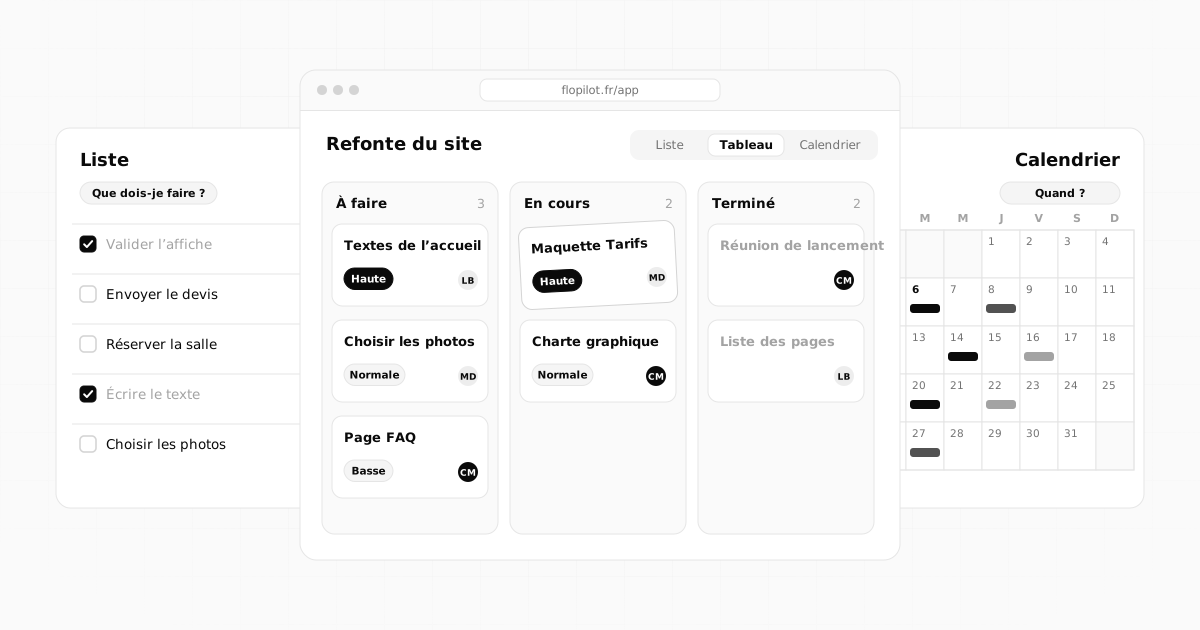
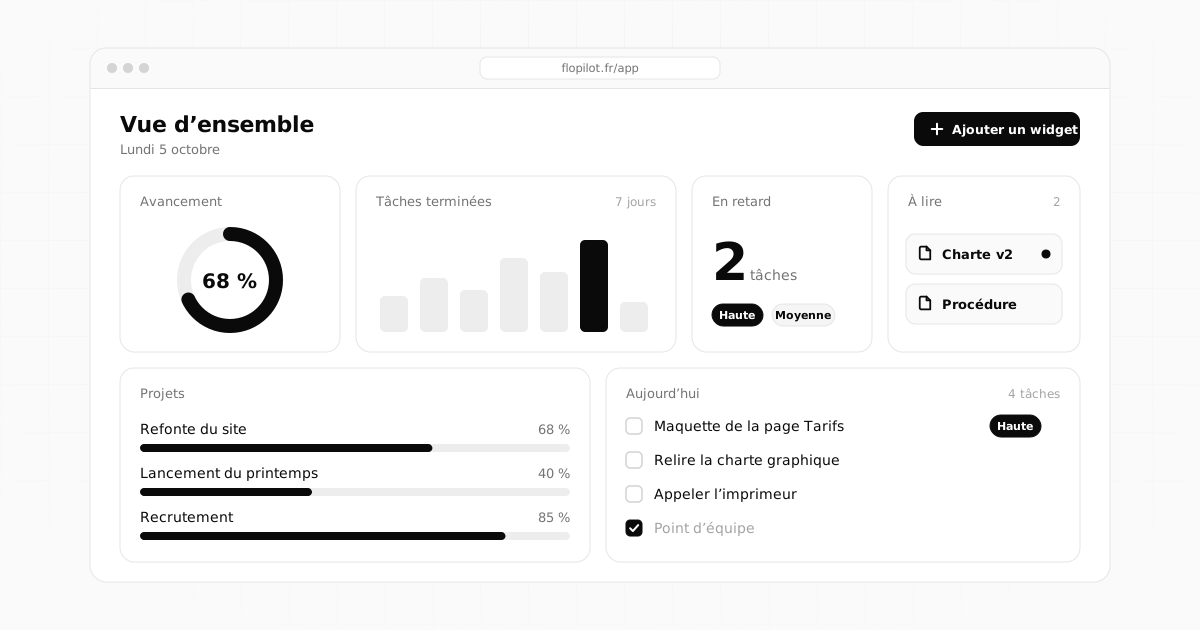
Flopilot brings together tasks, list, kanban and calendar views, documents you can read right in the app, and a dashboard for every project.
AIClaudeTask import