From scattered Google Drive folders to a real project workspace
Google Drive is excellent for storing files and co-writing. To run a project, the rest is missing: tasks, deadlines, and knowing who has read what.
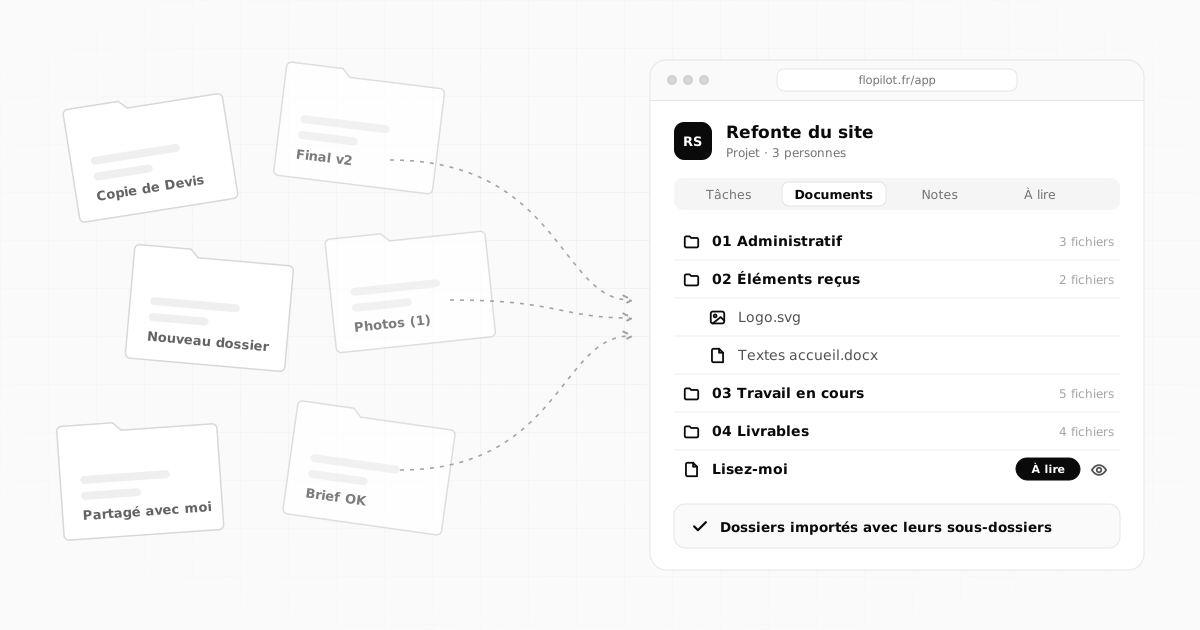
Google Drive is a great tool for storing files and for several people writing the same document. But over time, many teams get lost in it: folders shared by ten different people, "Copy of" everywhere, links sent by email that nobody can find, and no record of what's left to do.
The problem isn't Drive. It's that we ask it to do something it wasn't designed for: running a project.
Signs your Drive isn't enough anymore
- The "Shared with me" section has become an endless list.
- You no longer know which version of a document is the right one.
- The tasks linked to your documents live somewhere else: in emails, a messaging app, or your head.
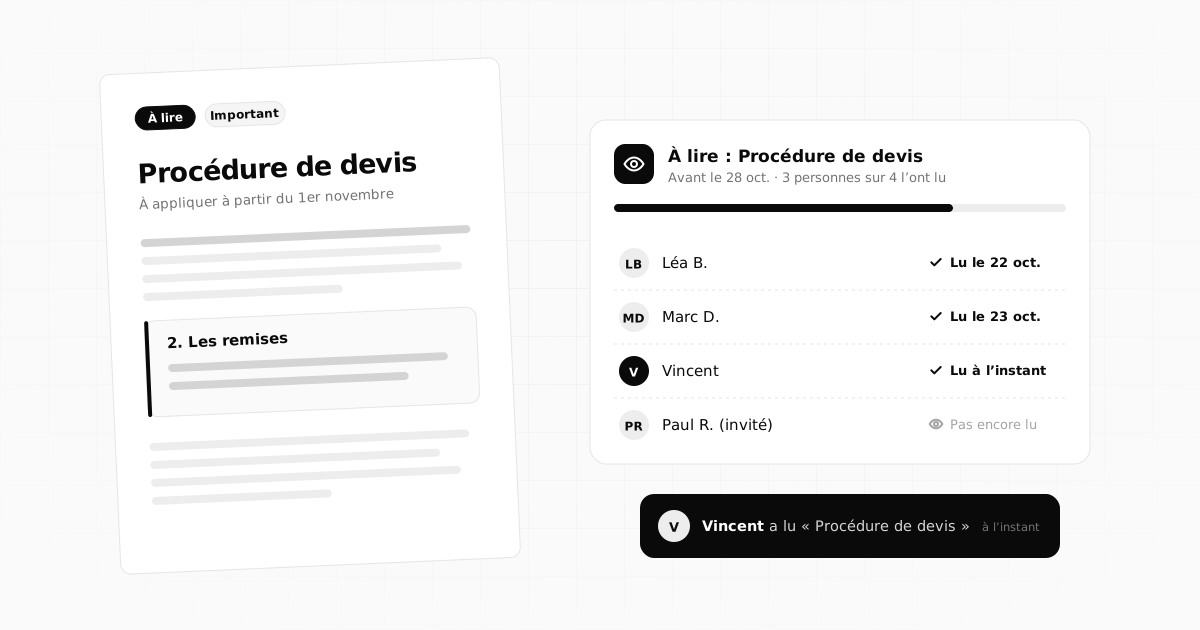
- You don't know whether the team has read the important document you shared.
- A new team member has no idea where to start.
If you recognise two or more of these signs, it's time to reorganise.
Storing isn't organising
A storage space is very good at answering "where's the file?". A project raises other questions: what needs doing, by when, who's on it, who has read what, where do things stand. A project workspace brings both together: the documents, and everything around them (tasks, notes, deadlines, reading, useful links).
So the goal isn't to swap Drive for another storage service, but to give every project a space where the work and the documents live together.
Step 1: take stock
Don't move everything. Start by listing your active projects, the ones you're working on this month: usually there are between five and fifteen. For each one, find the matching Drive folder or folders.
Everything else (old projects, archives, personal files) can stay where it is. You'll go and get it the day you need it.
Step 2: decide what moves and what stays
Not every document needs to move:
| Type of document | Where to keep it |
|---|---|
| Contracts, PDFs, images, finished presentations and spreadsheets | in the project workspace |
| Files received from a client or partner | in the project workspace |
| Documents co-written in real time in Google Docs | in Google Docs, with a shortcut in the project |
| Old archives | where they already are |
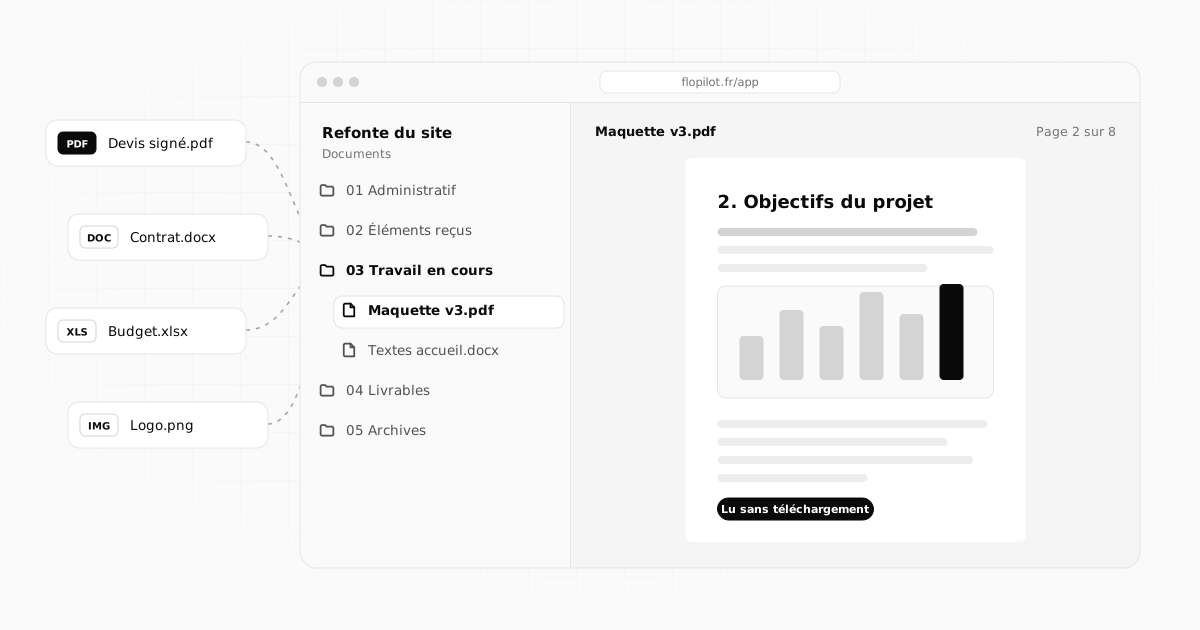
In Flopilot, Google Docs shortcuts keep their link: one click opens the document in Google Docs. So you can keep co-writing in Docs while still finding the document in its project.
Step 3: import folders as they are
No need to rebuild everything by hand, or to connect your Google account. There are two ways to do it:
- With Google Drive for desktop: your Drive shows up as a drive on your computer. Drag the project folder into the Documents tab of the Flopilot project: the subfolders and documents arrive exactly as they were.
- By downloading the folder: on the Google Drive website, download the folder; Google prepares a .zip file. Drop that .zip into Flopilot: it opens by itself, with its subfolders.
Downloaded Google Docs become Word files you can read right in the app.
Step 4: give the documents meaning again
Once the files are in place, the most important part is still ahead: linking the documents to the work.
- Create the tasks that were sitting in emails or in your head, with their deadlines.
- Add the useful links: the Google Docs that are still shared, the online mockup, the client's portal.
- Write a "Read me" note at the root of the project: how it's organised, who does what, where to find the essentials.
- Send the key documents to "To read": the team reads them, and you can see who did.
Step 5: tell the team
A reorganisation almost always fails for the same reason: people carry on as before because nobody told them. Announce the change clearly, with a date: "From Monday, the project documents are in Flopilot." Send the "Read me" note to "To read" so everyone reads it. Keep the old Drive folder in read-only mode for a few weeks, while habits change.
Pitfalls to avoid
- Moving everything, including ten years of archives: you'd spend the whole week on it for nothing.
- Two live versions of the same file, one in Drive and one in the project: decide where the working version lives.
- Forgetting to tell the team: everyone keeps filing the old way.
- Renaming everything during the migration: import first, then rename as you go.
Frequently asked questions
Do you need to connect your Google account to Flopilot?
No. Flopilot doesn't connect to your Google account: you drag your folders from your computer (with Google Drive for desktop) or drop the .zip that Google Drive prepares when you download a folder.
What happens to Google Docs in Flopilot?
Downloaded Google Docs become Word files you can read right in the app. Google Docs shortcuts, on the other hand, keep their link: one click opens the document in Google Docs.
Are subfolders kept when you import?
Yes. A dropped folder or a .zip arrives with its whole folder tree, as if you had created it in Flopilot.
Organise your projects with Flopilot
Tasks, notes, readable documents, To read and dashboards, all in one place. No commitment, and your guests never pay.
Google DriveMigrationDocuments