How to centralise project documents and never search for a file again
The quote is in an email, the mockup in a shared folder, the contract in your downloads. Here's how to finally bring all of a project's documents into one place.
The quote is in an email, the mockup in a shared folder, the contract in your downloads, and the notes from the last meeting in a memo on your phone. Every document has a good reason to be where it is. But the day you need one, you end up looking in four places.
Centralising a project's documents doesn't mean dumping everything into one big folder. It means one place per project, that everyone knows about, organised the same way for every project.
Why documents end up scattered
Nobody decides to scatter their documents. It just happens, for four reasons:
- they arrive through different channels: email, messaging apps, file transfer links, USB sticks;
- everyone files things their own way, with their own folder names;
- storage and tasks live in separate tools, so a document is never next to the task that mentions it;
- nobody is in charge of filing, so it keeps getting put off.
One place per project
The basic rule is simple: every document related to a project lives in that project. An attachment you received by email? It goes into the project. A file someone sent you on a messaging app? Same thing. If a document concerns several projects, file it in the main one and mention it in the others.
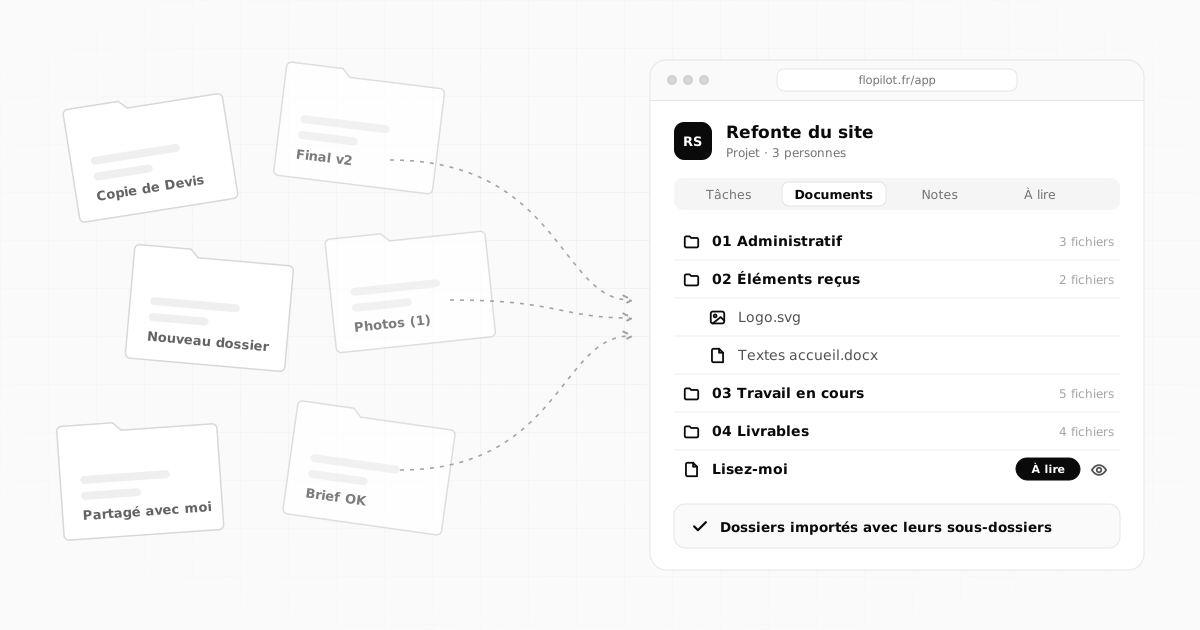
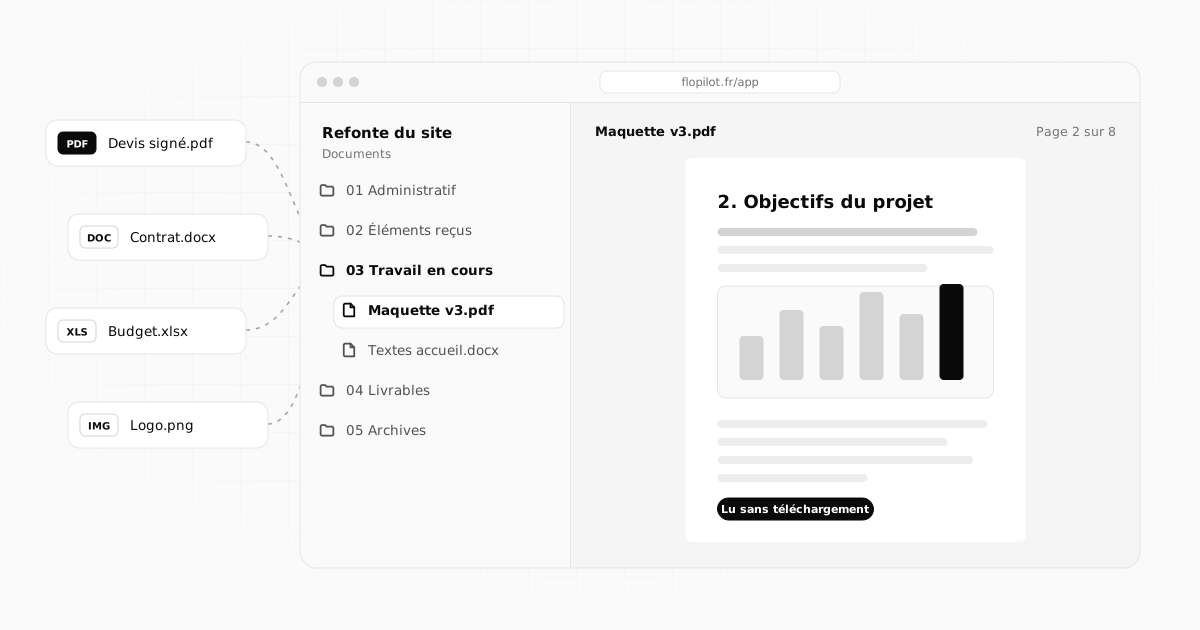
In Flopilot, every project has its own Documents tab, with folders and a folder tree. A Documents page also brings together the documents from all your projects, for those times when you can't remember which project you filed something in.
A simple folder structure, the same everywhere
The secret of good filing isn't perfection, it's repetition: the same structure in every project, so you know where to look without thinking. Five folders are enough in most cases:
- 01 Admin: quotes, contracts, purchase orders, invoices.
- 02 Received: what the client or partners have sent you (logos, copy, photos).
- 03 Work in progress: drafts and working files.
- 04 Deliverables: the approved, delivered versions.
- 05 Archive: what's no longer current but worth keeping.
The numbers force the display order: admin at the top, archive at the bottom.
Naming your files properly
A good file name tells you what's inside without opening it. Three rules are enough:
- the date first, in year-month-day format (2026-10-02), so that sorting by name is also sorting by date;
- the subject, in plain words;
- the version if the document evolves (v1, v2, v3), rather than "final", "final2" and "really final".
Read without downloading
This is a time saver people underestimate. Downloading a file to see what's in it, opening it in another program, then hunting for it in your downloads folder: over time, that adds up to dozens of minutes a week, and duplicate copies everywhere.
Flopilot displays documents right in the browser: PDFs, images, carousels, Markdown, Word documents, spreadsheets and presentations. Everyone reads the same version, in the same place, including on a phone. Every file can still be downloaded in its original format whenever you need it.
Link documents to the work
A document is only useful if you know what it's for. When a task depends on a document ("Add the copy for the Services page"), say so in its description. When a request comes with a screenshot, attach it to the task: in Flopilot, a task's screenshots and attachments are automatically filed in the project's "Pièces jointes" (Attachments) folder.
Find anything in a few letters
Even when it's well organised, a project ends up holding hundreds of files. Search does the rest: in Flopilot, it looks through tasks, notes, documents and links. A few letters are enough to find "the bakery quote" without remembering where you put it.
Documents that need to be read
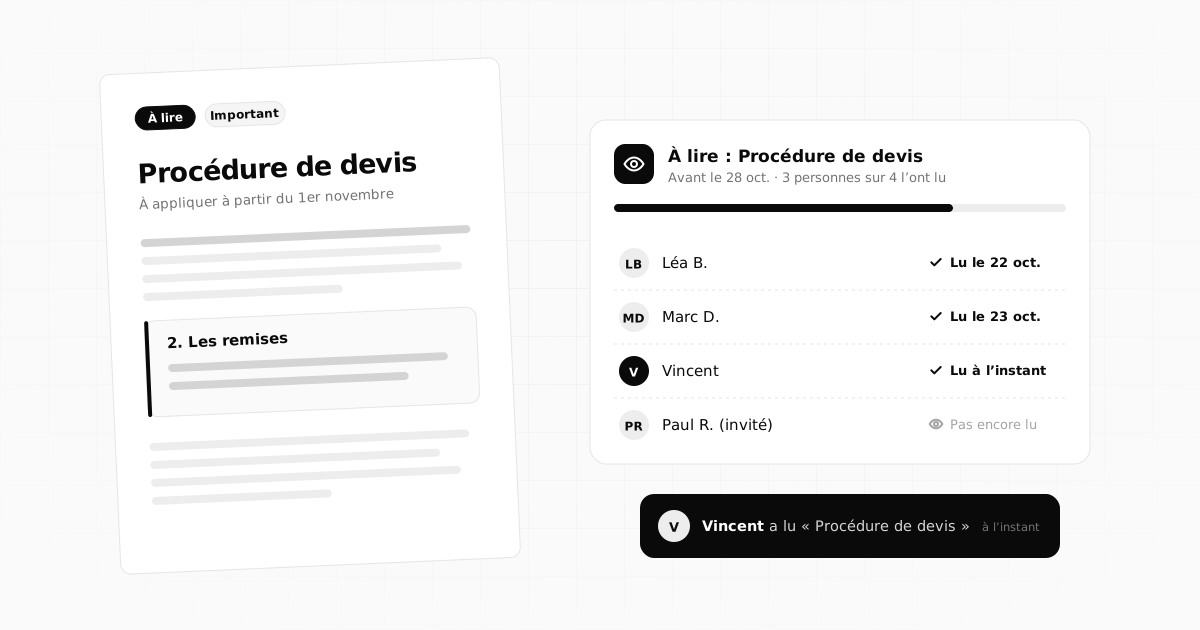
Some documents are useless unless people read them: brand guidelines, a new procedure, a contract to review. For those, filing isn't enough, you need to get them read. Flopilot's "To read" feature lets you send a document to one or more people and see who has read it. We explain how in Getting your team to read a document.
What about Google Docs?
If your team co-writes in Google Docs, nothing forces you to change that habit. In Flopilot, Google Docs shortcuts keep their link: one click opens the document in Google Docs. And downloaded Google Docs become Word files you can read right in the app. To move everything over cleanly, read From scattered Google Drive folders to a project workspace.
Common mistakes
- One big "Clients" folder with three hundred files side by side.
- Leaving attachments in your inbox, telling yourself you'll find them later.
- Copies everywhere: "Copy of", "Mark's version", "updated".
- Filing later: later, there will be twice as much.
Frequently asked questions
How should you organise a project's documents?
One place per project, with the same folder structure everywhere: admin, received files, work in progress, deliverables, archive. File names that start with the date and end with the version, and filing done as you go.
Which documents can you read in Flopilot without downloading them?
PDFs, images, carousels, Markdown files, Word documents, spreadsheets and presentations are displayed right in the app. Every file can still be downloaded in its original format.
Can you import a whole folder with its subfolders?
Yes. Drag the folder from your computer, or its .zip, into a project's Documents tab: the subfolders and documents arrive exactly as they were.
All of this, in a single tool
Flopilot brings together tasks, list, kanban and calendar views, documents you can read right in the app, and a dashboard for every project.
DocumentsFilingFolder structure